← Software and tools

Client tool

FieldWork

A field data app for landscape architects. Drop in a site plan and it sits on the map on your phone for every site visit, with or without signal. Tree inventories, planting beds, punch lists and site observations are recorded right on top of it, and the reports come straight out of the data.

Sample project. No client data is shown.
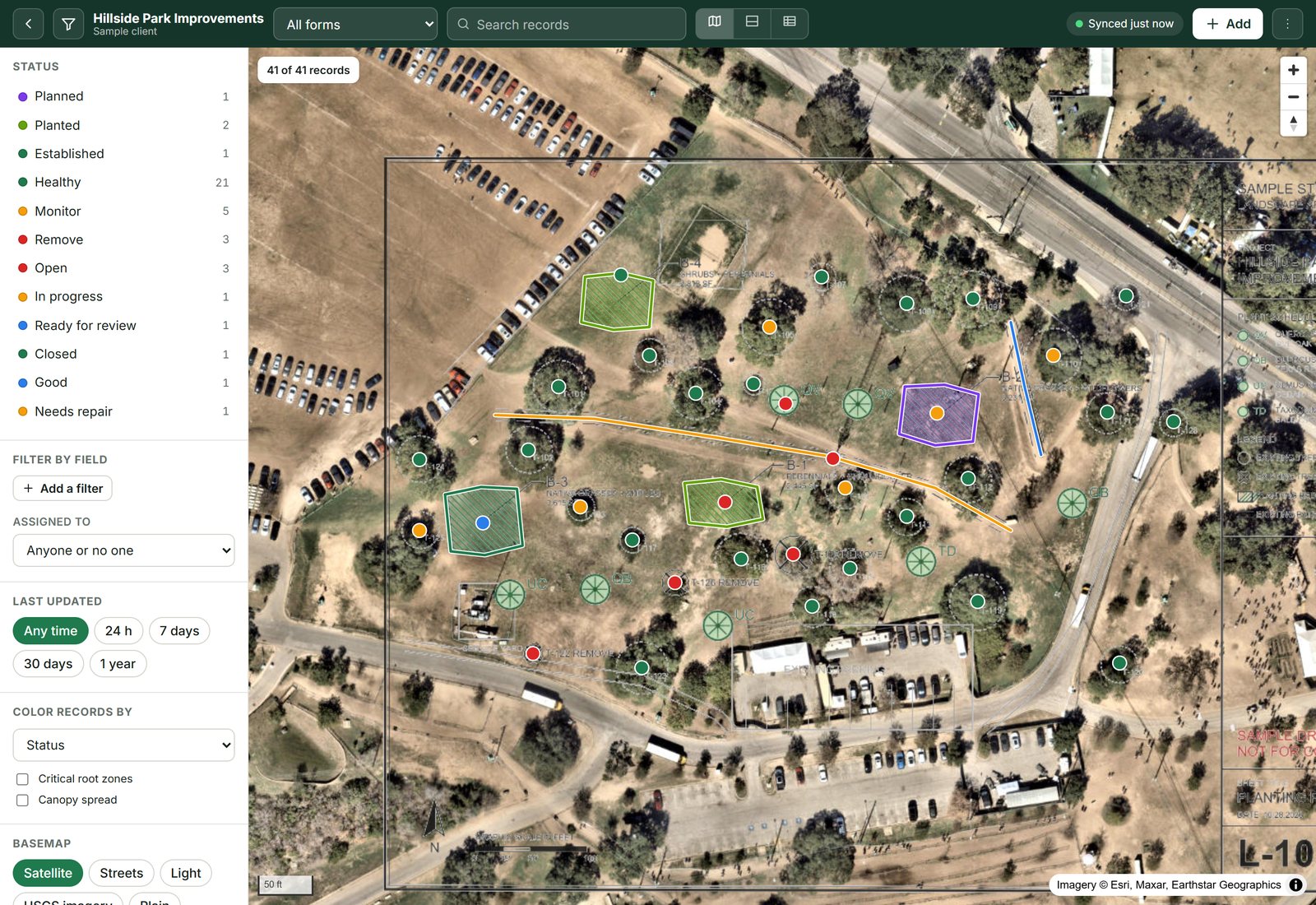
FieldWork dashboard: a tree inventory, planting beds, paths and punch list items over a georeferenced planting plan and satellite imagery
The office view: every form in the project on one map, over the georeferenced planting plan, with filters by status, field, person and date.

How it works

From site plan to site visit

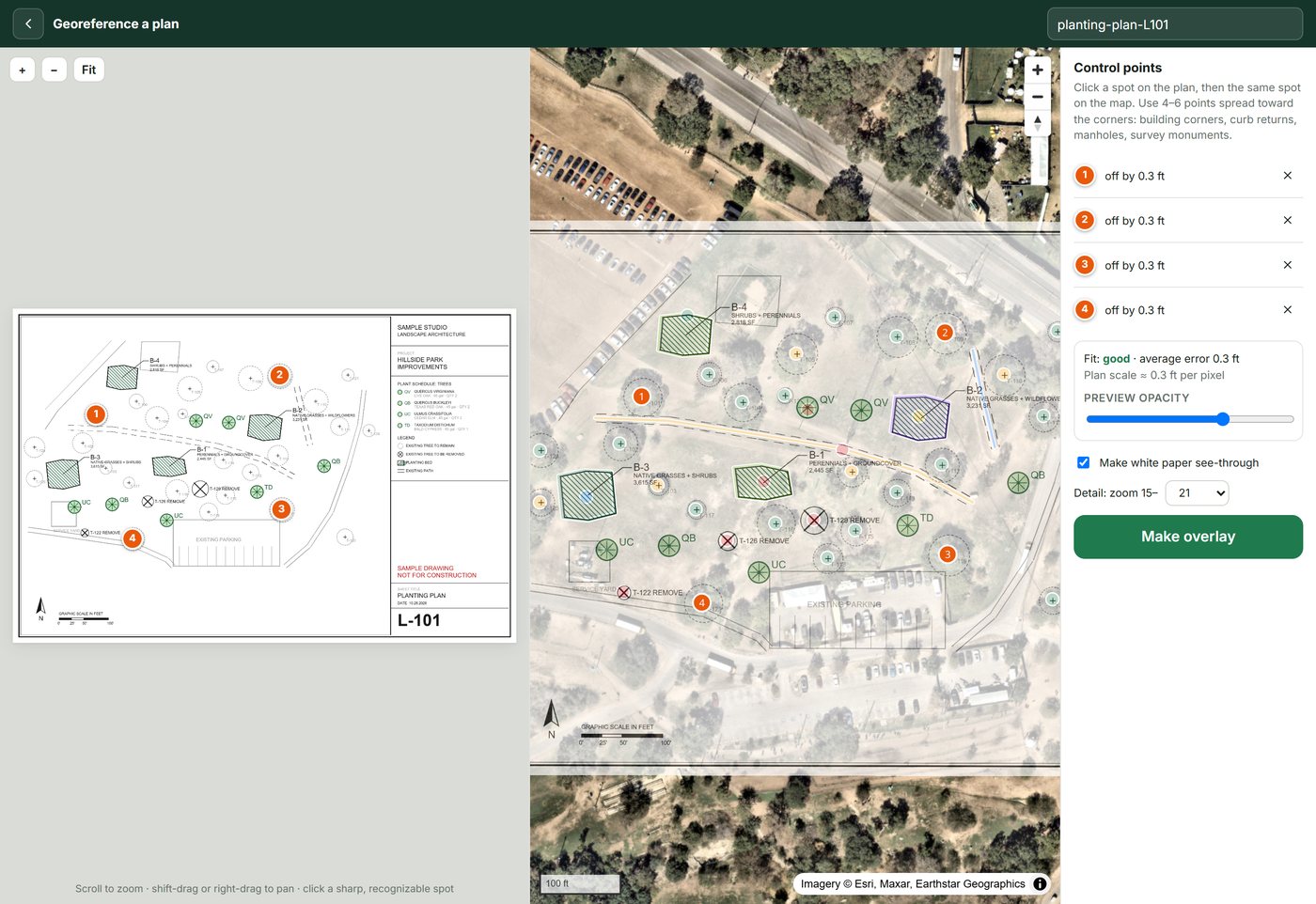
Georeferencing a planting plan PDF: four numbered control points on the sheet and the matching points on satellite imagery, with a fit of 0.3 ft

01 · Plans

Your site plan, on the map

Open a plan PDF in the browser, click four to six matching points on the sheet and the map, and it becomes a map layer. The fit is shown in feet for each point, and the white paper turns see-through so the imagery shows under the linework.

  • Plan layers can be saved to the phone for sites with no signal, along with the satellite basemap
  • CAD linework (DXF) goes straight onto the map in its layer colors
  • State Plane coordinates throughout, with northing and easting on every record
  • A swipe slider compares two plan sets
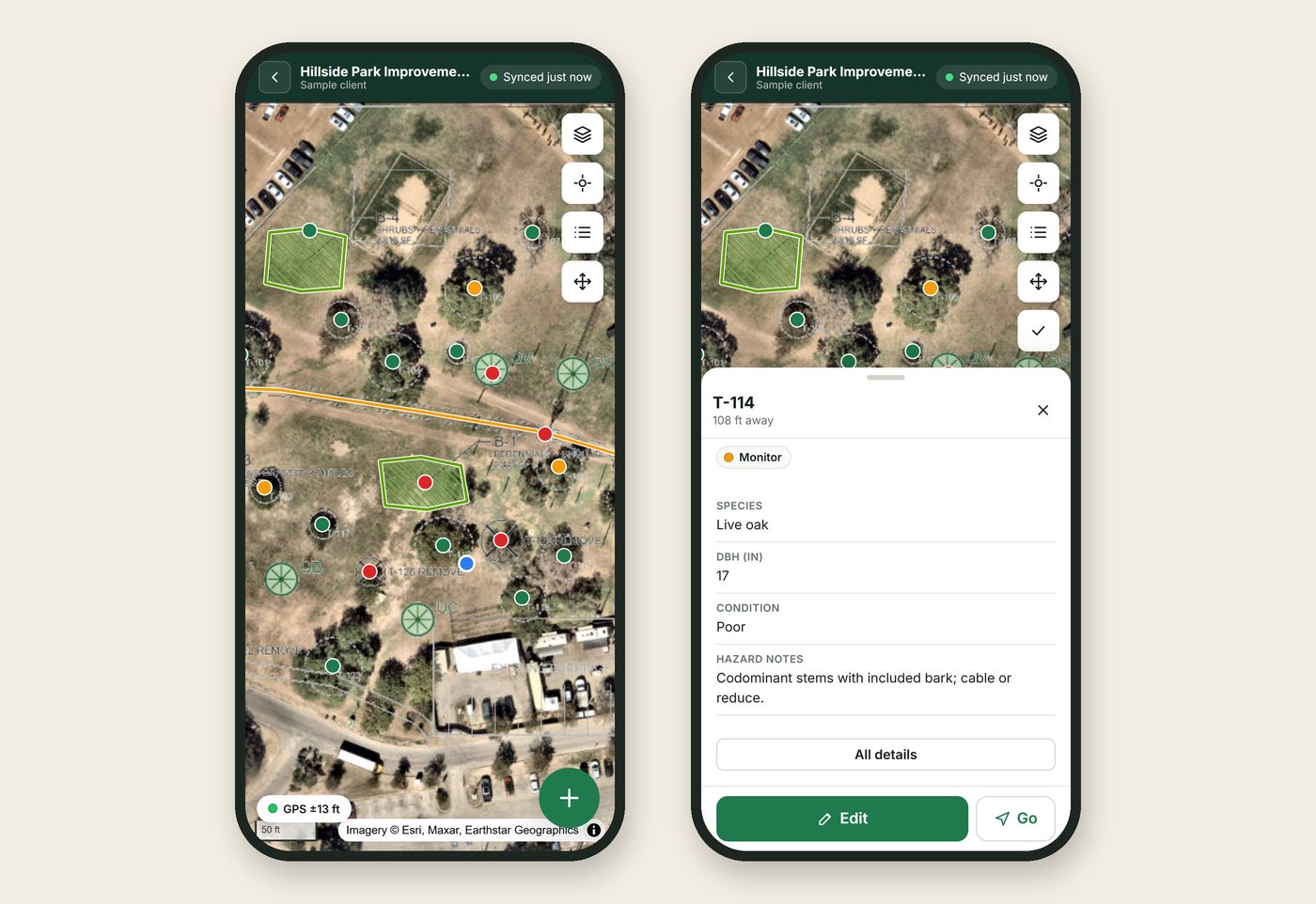
FieldWork on two phones: the site map with the plan overlay and GPS location, and a tree record marked Monitor

02 · Field

Trees, beds and punch lists on your phone

On site you see the plan, your GPS position and every record around you. Tap a tree for its record, or add a new one where you're standing. An edit made offline is never silently overwritten: if two people change the same record, both versions are kept to choose from.

  • Forms start from templates: tree survey, site inventory, construction observation, punch list, irrigation audit, plant installation and warranty
  • Points, lines and areas, drawn on the map or walked with GPS
  • Photos with captions and markup, signatures, barcodes and sign-offs
  • Fields that only show when they apply, and repeating inspections on one record
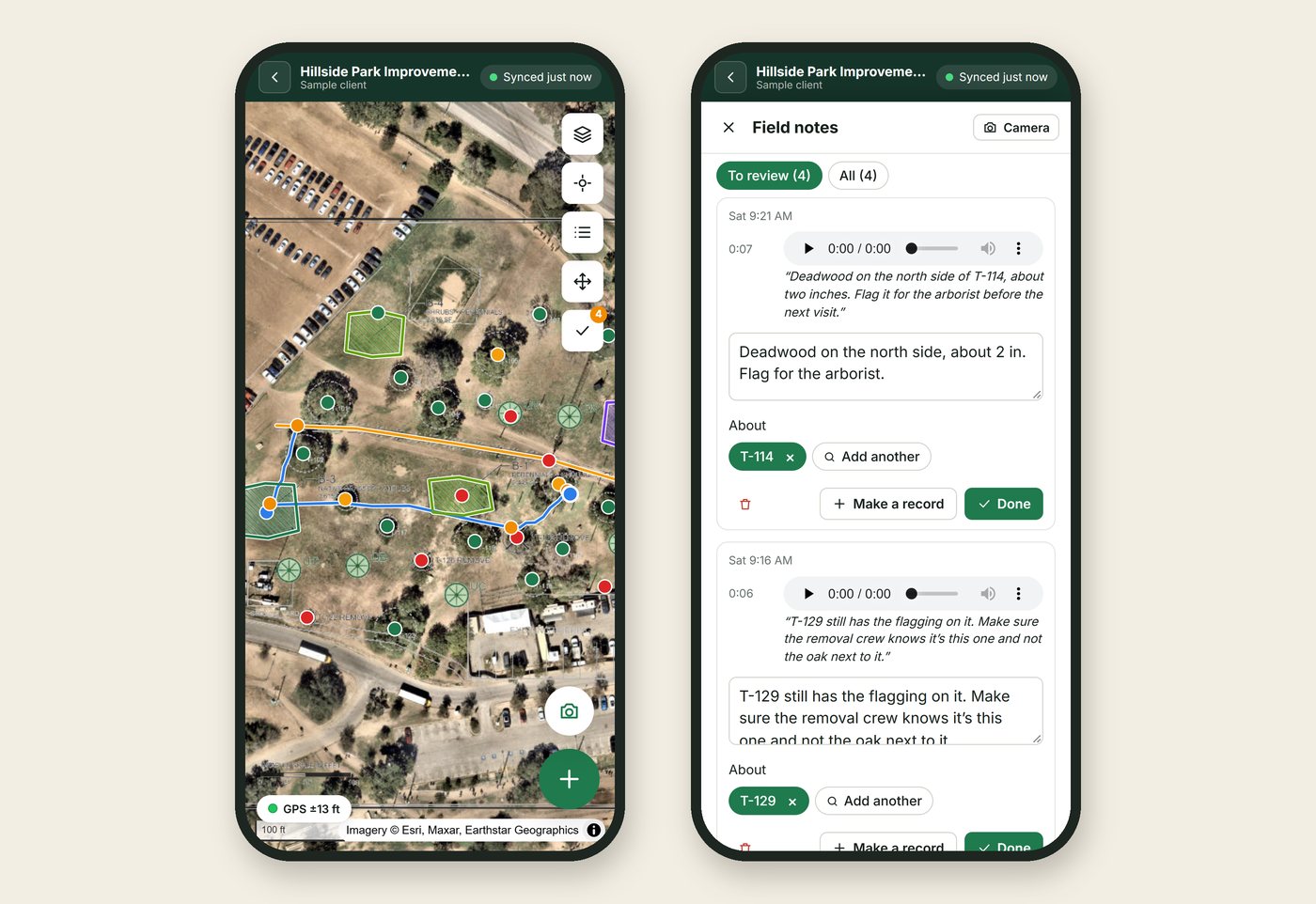
FieldWork auto mode on two phones: a walked GPS track with field notes along it on the site map, and the field notes review list with voice note transcripts attached to trees T-114 and T-129

03 · Auto mode

Walk the site and skip the forms

Open the camera and walk. Tap for a photo, or hold to talk while you frame the shot. Each note is transcribed and attached to the nearest tree or bed, and your route is recorded with the phone in your pocket.

  • Review the notes before you leave: fix the text, attach them to a different feature, or turn any of them into a full record
  • Notes and the walked track go into that day's site visit report
  • Recorded the walk on a watch? Import the GPX or FIT file and notes saved without a good GPS fix are placed along it by time
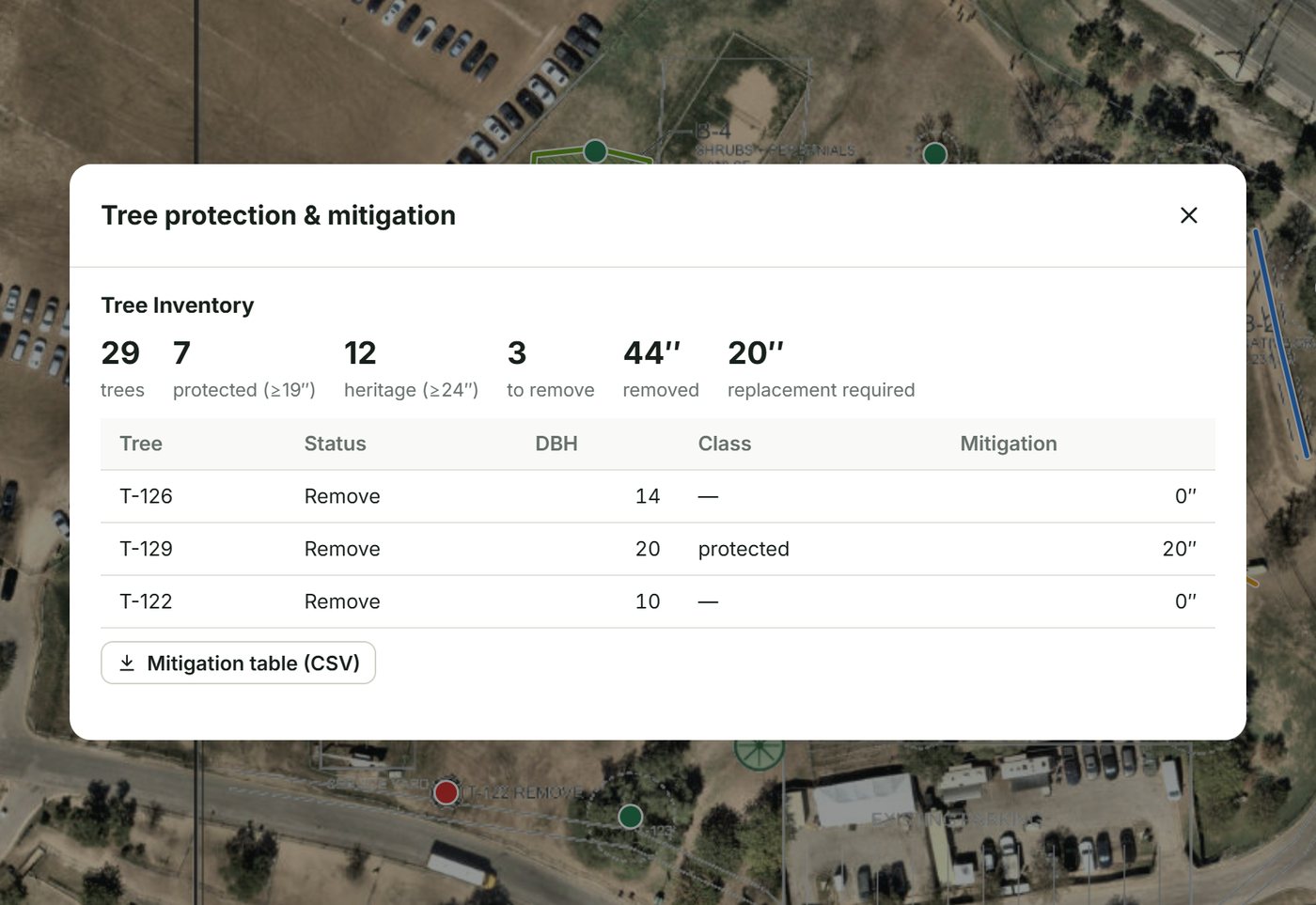
Tree protection and mitigation summary: 29 trees, 7 protected, 12 heritage, 3 to remove and 20 inches of replacement required, with a table of the trees to remove

04 · Trees

Tree protection, worked out from the survey

Critical root zones and canopy spread draw on the map from each tree's DBH. Protected and heritage trees are flagged from the size thresholds, and the mitigation inches for trees marked for removal are totaled, ready to export as a table.

  • Thresholds are set in the form, to match each city's ordinance
  • Root-zone circles and tree blocks with every field as an attribute go out to CAD
  • The plant schedule can be imported and checked against field counts
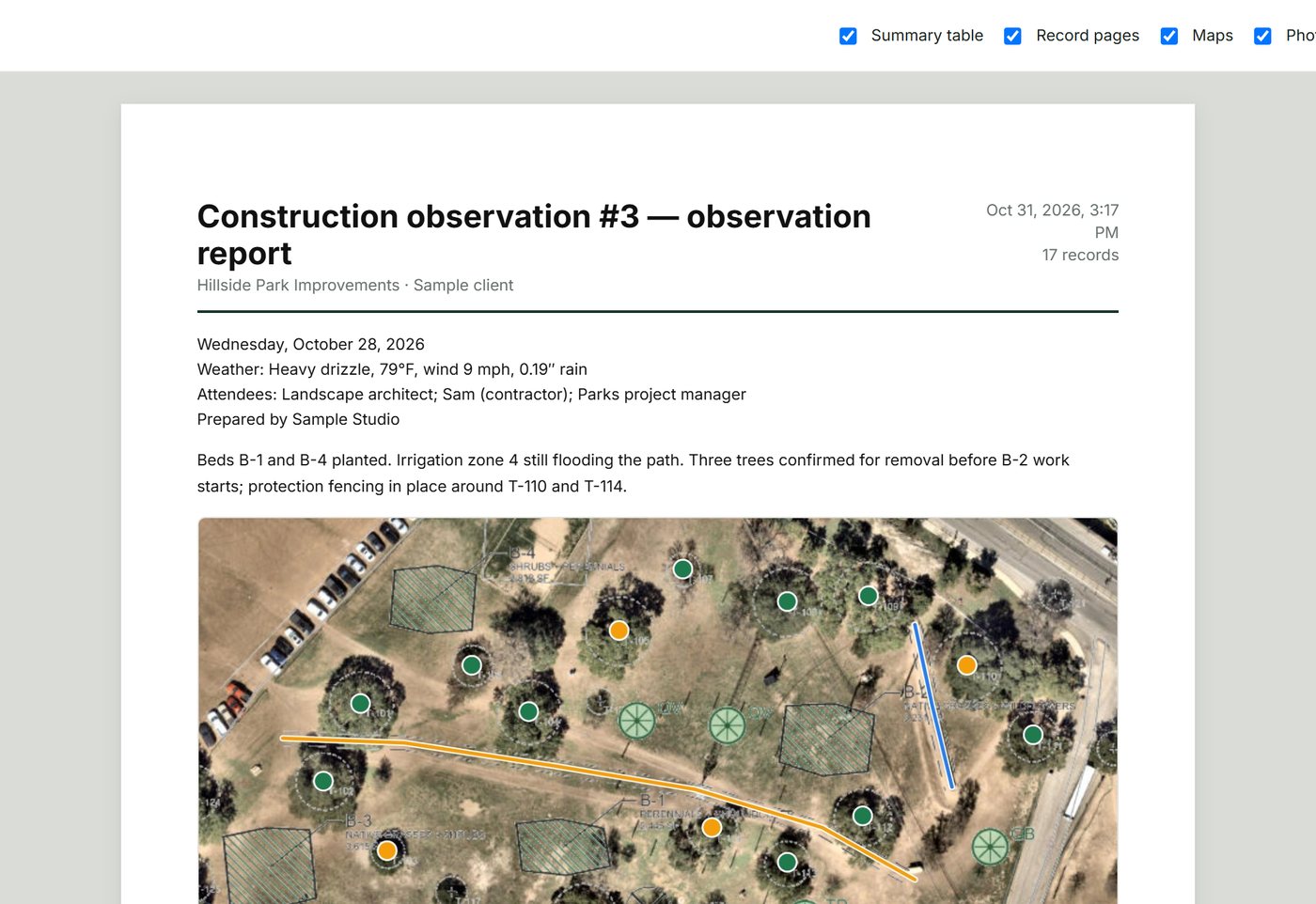
Site visit observation report with the date, attendees, notes and a map of everything recorded that day

05 · Reports

Every site visit becomes a report

The observation report gathers the attendees, notes, field notes and every record made or changed that day, plus punch list items still open, on a map. The day's weather at the site is added for the record, so conditions like a wet day or a freeze are noted alongside what was observed.

  • PDF reports of any filtered set of records, a page per record with its map and photos
  • Read-only client links to the map, table and photos, with optional comments and an expiry date
  • Customize reports with your logo

The dashboard

Track a project visit by visit

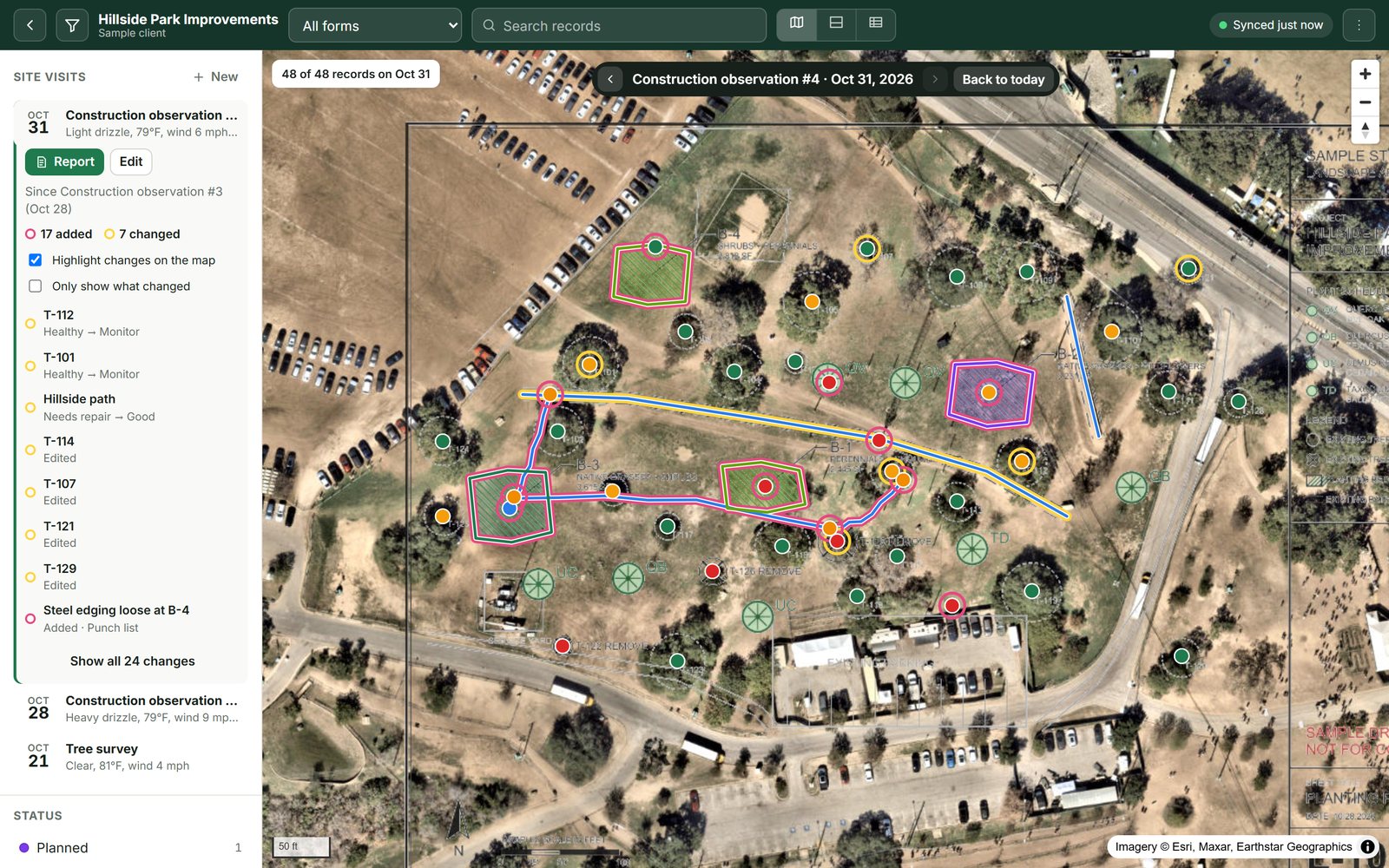
FieldWork dashboard on a site visit: the visits listed in the sidebar with their weather, two trees moved from Healthy to Monitor and a path from Needs repair to Good, and every record added or changed since the previous visit ringed on the map
Everything since the last visit, ringed on the map: pink for added, yellow for changed.

Every visit in the sidebar

Each site visit is listed with its date and the day's weather, and its observation report is one click away.

The project as it stood

Choose a visit and the map and table show every record as it was that day. Step back and forward through the visits to follow the project over time.

What changed since last time

Records added, changed or removed since the visit before are ringed on the map and listed, like a tree going from Healthy to Monitor. Turn the rings off, or show only what changed.

Also in FieldWork

The rest of the toolkit

Assignments

Assign records to a person with a due date. Phones show "Assigned to me", and due dates and warranty reminders appear under "Coming up".

Full history

Every change to a record is kept and shown as a diff. Any earlier version can be restored, and deleted records wait in the trash.

Import

CSV and GeoJSON, with columns matched to fields. Surveyor CSVs with northing and easting come straight in, and an edited export re-imports as updates.

Dashboard tools

Filter by any field, color the map by any field, change many records at once, and measure distances and areas.

Team and roles

Admins set up projects, forms and plans. Everyone else sees only the projects they're added to.

Backups

Download any project as a zip: the data as JSON and GeoJSON, the original photos and, if you want, the plan layers.

Under the hood

How it runs

  1. 01

    On the firm's own account

    The app, data, photos and voice notes live in the firm's own Cloudflare account. Voice notes are transcribed there too.

  2. 02

    Phones and computers

    Android and iPhone apps, or the same app straight from a browser. App updates reach every phone without an app store release.

  3. 03

    Offline first

    The project is kept on each device and edits wait in a queue until there's signal. Signing out warns about anything not yet synced.

  4. 04

    Open formats out

    DXF for CAD, Shapefile, GeoJSON, KML and CSV, so the data is never stuck in the app.

Sign-in required. FieldWork isn't a public product. If your firm wants something like it, get in touch.

Ask about FieldWork